
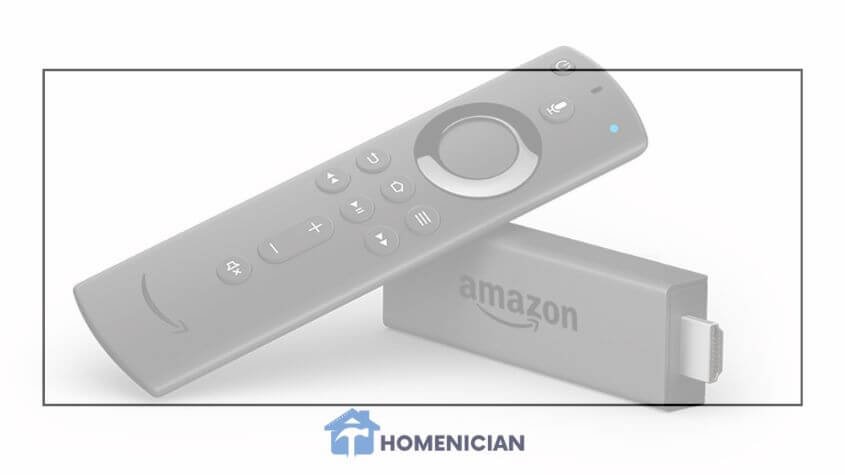
Understanding how to contact Amazon Fire Stick customer service is crucial for resolving any issues you might encounter with your device. The Amazon Fire Stick is a popular streaming device, but technical glitches, setup problems, or remote malfunctions can sometimes occur.
Fortunately, Amazon provides several accessible channels to ensure you get the assistance you need promptly. This guide will walk you through the various contact methods, common issues, and effective communication tips.
Understanding Amazon Fire Stick Customer Service Options
Amazon is committed to providing comprehensive support for its Fire Stick users. They offer multiple ways to reach their customer service team, catering to different preferences and urgency levels.
Knowing these options empowers you to choose the most efficient path for your specific problem. Whether you prefer a quick chat or a detailed phone conversation, Amazon has you covered.
Direct Methods to Contact Amazon Fire Stick Customer Service
When you need immediate help, direct contact methods are your best bet. These options allow you to speak directly with a representative who can guide you through troubleshooting or account-related queries.
Familiarizing yourself with these steps will save you time and frustration when an issue arises.
Live Chat Support
Live chat is often the quickest way to get a response and is ideal for less complex issues or when you need step-by-step guidance without being on the phone.
It allows you to multitask while waiting for a response and provides a written record of your conversation.
Step 1: Open your web browser and navigate to the official Amazon website.
Step 2: Scroll down to the bottom of the page and click on the “Customer Service” link, usually found in the footer.
Step 3: On the Customer Service page, look for the “Contact Us” section. You might need to click “Something else” or “I need more help” to reveal further options.
Step 4: Select the “Chat with us” option. This will open a new chat window where you can describe your issue to a virtual assistant or a live representative.
Step 5: Clearly state your problem related to your Amazon Fire Stick. Be ready to provide your account details and device information if requested.
Phone Call Support
For more complex issues that require detailed explanations or real-time troubleshooting, a phone call can be more effective. Amazon often provides an option to request a callback, so you don’t have to wait on hold.
This method ensures you receive personalized attention from a support agent.
Step 1: Begin by visiting the Amazon website and accessing the “Customer Service” page, similar to initiating a live chat.
Step 2: Navigate to the “Contact Us” area and select the “Something else” or “I need more help” option to see all available contact methods.
Step 3: Choose the “Request a phone call” or “Call us” option. Amazon typically asks you to enter your phone number and a brief description of your issue.
Step 4: An Amazon representative will call you back shortly. Make sure your phone is nearby and ready to receive the call.
Step 5: Clearly explain your Fire Stick problem to the agent. Having your device handy during the call can facilitate troubleshooting.
Email Support
Email support is suitable for non-urgent inquiries or when you need to provide extensive details, screenshots, or attachments. While it may not offer an immediate response, it provides a comprehensive record of your communication.
This method is ideal if your issue does not require real-time interaction.
Step 1: Access the Amazon Customer Service page through the main website.
Step 2: Look for an option that directs you to “Email Us” or “Send us an email.” This might be under the “Contact Us” section after selecting “Something else.”
Step 3: Fill out the email form provided. Include your Amazon account email address, a clear subject line, and a detailed description of your Amazon Fire Stick issue.
Step 4: Attach any relevant files, such as error message screenshots, if they help explain your problem.
Step 5: Send the email and await a response. Amazon typically aims to reply within 12-24 hours.
Alternative Support Channels for Amazon Fire Stick
Beyond direct contact, Amazon offers several other resources that can help you resolve issues or find information about your Fire Stick. These channels can often provide quick answers without needing to speak to a representative.
Amazon’s Help Pages and Knowledge Base
The Amazon website hosts an extensive library of help articles, FAQs, and troubleshooting guides specific to the Fire Stick. These resources are designed to help users solve common problems independently.
Searching these pages first can often provide an immediate solution to your issue.
Visit the “Help & Customer Service” section on Amazon.com.
Use the search bar to look for specific terms like “Fire Stick remote not working” or “buffering issues.”
Browse categories related to Fire TV devices for general information and troubleshooting steps.
Amazon Community Forums
Amazon’s community forums are platforms where users can ask questions and share solutions with other Fire Stick owners and sometimes Amazon staff. It’s a great place to find peer-to-peer support and discover common workarounds.
You might find that someone else has already experienced and resolved a similar issue.
Access the Amazon Digital and Device Forums from the main Amazon website.
Search for existing threads related to your Fire Stick problem.
If you don’t find an answer, post your own question, providing as much detail as possible.
Social Media Support
While not a primary support channel, Amazon often has a presence on social media platforms like Twitter. You can sometimes get general advice or be directed to the correct support channel by tagging their official support accounts.
This method is usually for general inquiries rather than detailed technical support.
Look for official Amazon Support accounts on platforms like X (formerly Twitter).
Send a direct message or mention their account with your query.
Be prepared to be redirected to their official customer service channels for in-depth assistance.
Common Reasons to Contact Amazon Fire Stick Customer Service
Users reach out to support for a variety of reasons, ranging from minor glitches to significant device malfunctions. Understanding the most frequent issues can help you describe your problem more accurately when seeking help.
Fire Stick Remote Issues
The remote is your primary interface with the Fire Stick, so any problems with it can severely impact your streaming experience. Issues can range from simple battery problems to more complex pairing failures.
Unresponsive Buttons: Buttons not registering presses, making navigation impossible.
Pairing Problems: The remote failing to connect or stay connected to the Fire Stick.
Voice Control Malfunctions: Alexa voice commands not being recognized or processed.
Battery Drainage: Batteries running out unusually quickly, indicating a potential remote fault.
Streaming and Playback Problems
The core function of the Fire Stick is streaming content, so any interruption to this can be frustrating. These issues often relate to network connectivity or app performance.
Buffering Issues: Video constantly pausing to load, even with a strong internet connection.
Playback Errors: Receiving error messages like “Video not available” or “Playback error.”
App-Specific Glitches: Certain streaming apps crashing, freezing, or failing to load content.
Poor Video Quality: Content consistently playing in lower resolution despite available bandwidth.
Device Setup and Configuration Challenges
Setting up a new Fire Stick or reconfiguring an existing one can sometimes present hurdles. These often involve network settings, account linking, or initial software updates.
Wi-Fi Connectivity Issues: Fire Stick unable to detect networks or connect to your home Wi-Fi.
Account Activation Problems: Difficulty registering the device to your Amazon account.
HDMI Handshake Issues: Blank screen or no signal due to communication problems with your TV.
Software Update Failures: Device getting stuck during a software update or failing to complete it.
Account and Billing Issues
Problems related to your Amazon account or billing can prevent you from accessing content or using your Fire Stick effectively. These are sensitive issues that often require direct customer service intervention.
Password Reset Difficulties: Unable to log into your Amazon account on the Fire Stick.
Subscription Management: Issues with starting, canceling, or managing streaming service subscriptions.
Unauthorized Purchases: Discovering unexpected charges on your Amazon account.
Payment Method Updates: Problems updating billing information or linking new payment methods.
General Technical Malfunctions
Sometimes, the Fire Stick itself might experience hardware or software failures that are not easily categorized. These can range from overheating to complete unresponsiveness.
Device Overheating: The Fire Stick becoming excessively hot during use, potentially leading to performance issues.
Random Restarts/Crashes: The device frequently restarting or freezing without user input.
Storage Full Errors: Inability to install new apps due to insufficient internal storage.
No Power: The Fire Stick not turning on at all, even after checking power connections.
Essential Troubleshooting Tips Before Contacting Support
Before you reach out to Amazon Fire Stick customer service, trying a few common troubleshooting steps can often resolve your issue quickly. Many problems have simple solutions that don’t require external help.
Restarting Your Fire TV Device
A simple restart can often clear temporary glitches and refresh your device’s system. This is the first and easiest step to try for almost any issue.
Go to your Fire TV Settings.
Select My Fire TV.
Choose Restart from the options.
Alternatively, unplug the Fire Stick from its power source, wait 30 seconds, and plug it back in.
Checking Connections and Power
Loose cables or insufficient power are common culprits for many Fire Stick problems, especially a blank screen or unresponsiveness.
Ensure the Fire Stick is securely plugged into an HDMI port on your TV.
Verify that the USB power cable is firmly connected to the Fire Stick and the power adapter.
Always use the original power adapter provided with your Fire Stick, as third-party adapters may not supply enough power.
Confirm your TV is set to the correct HDMI input channel.
Troubleshooting Remote Issues
Remote problems are frequent, but many can be fixed with basic checks and re-pairing procedures.
Replace the batteries in your Fire TV remote with fresh ones.
Hold the Home button on your remote for 10-15 seconds to re-pair it with your Fire Stick.
Move the remote closer to your Fire Stick to rule out interference.
If you have the Fire TV App on your smartphone, try using it as a temporary remote to navigate to settings and troubleshoot.
Optimizing Your Network Connection
Many streaming issues stem from a weak or unstable Wi-Fi connection. Improving your network can significantly enhance your Fire Stick’s performance.
Restart your Wi-Fi router and modem by unplugging them for 30 seconds and plugging them back in.
Move your Fire Stick closer to your Wi-Fi router, or consider using an HDMI extender to give it more space from the TV.
Disconnect other devices from your Wi-Fi network that might be consuming bandwidth.
Check your internet speed using an online speed test to ensure it meets streaming requirements.
Clearing Cache and Data for Apps
Over time, apps can accumulate cached data that might lead to performance issues or crashes. Clearing this data can often resolve app-specific problems.
Go to Settings on your Fire TV.
Select Applications.
Choose Manage Installed Applications.
Select the problematic app, then choose Clear Cache and then Clear Data (note: clearing data will log you out of the app).
Updating Fire Stick Software
Outdated software can cause compatibility issues and bugs. Ensuring your Fire Stick runs the latest software version is vital for optimal performance.
Go to Settings on your Fire TV.
Select My Fire TV.
Choose About.
Select Check for Updates. Install any available updates.
Tips for Efficient Communication with Amazon Fire Stick Customer Service
When you do need to contact Amazon Fire Stick customer service, being prepared and communicating effectively can significantly speed up the resolution process. Follow these tips to ensure a smooth interaction.
Gather All Relevant Information Beforehand
Having key details readily available will help the representative understand your situation quickly without needing to ask too many clarifying questions. This preparation saves both your time and theirs.
Device Information: Have your Fire Stick model (e.g., Fire Stick 4K Max), serial number, and purchase date ready. You can usually find the serial number in Settings > My Fire TV > About.
Account Details: Ensure you have your Amazon account email address and payment information accessible if the issue is account-related.
Detailed Problem Description: Clearly articulate what the problem is, when it started, and any error messages you’ve received.
Troubleshooting Steps Taken: List all the steps you’ve already tried (e.g., “I’ve restarted the device, checked the HDMI cable, and cleared the app cache”).
Specific Apps/Content: If the issue is app-specific, mention which app (e.g., Netflix, Hulu) and what content you were trying to access.
Be Clear, Concise, and Specific
Avoid vague descriptions. The more precise you are, the better the representative can understand and diagnose your issue. Focus on the facts and avoid emotional language.
State your problem in one or two sentences at the beginning of the conversation or email.
Use simple language and avoid technical jargon unless you are sure the representative will understand.
Provide specific examples where possible. For instance, instead of “my Fire Stick is slow,” say “my Fire Stick lags when navigating menus and takes over 30 seconds to open Prime Video.”
Maintain Patience and Politeness
Technical issues can be frustrating, but maintaining a calm and respectful demeanor will lead to a more productive interaction. Customer service representatives are there to help you.
Understand that troubleshooting can sometimes take time and multiple steps.
Listen carefully to the representative’s instructions and questions.
If you don’t understand something, politely ask for clarification.
Remember that the representative is following protocols and doing their best to assist you.
Follow Up if Necessary
If your issue isn’t fully resolved during the initial contact, or if you need to provide additional information, don’t hesitate to follow up. Keep a record of your case number, if provided.
Note down the case ID or reference number given by the representative.
If you promised to send screenshots or perform further tests, do so promptly.
If you haven’t heard back within the promised timeframe, use your case number to reference your previous interaction when contacting them again.
Frequently Asked Questions
How do I contact Amazon Fire Stick customer service for a remote issue?
To contact Amazon Fire Stick customer service for a remote issue, visit the Amazon “Contact Us” page, select “Something else,” then “I need more help.” You can then choose to chat with a representative or request a phone call to discuss your specific remote problem.
What information should I have ready before contacting Fire Stick support?
Before contacting Fire Stick support, gather your device model, serial number (found in settings), Amazon account details, a clear description of your issue, and a list of any troubleshooting steps you’ve already attempted. This preparation helps the support team assist you more efficiently.
Can I get help with my Amazon Fire Stick via email?
Yes, you can contact Amazon Fire Stick customer service via email for non-urgent inquiries. Navigate to the Amazon “Contact Us” page and look for an “Email Us” option. Provide a detailed explanation of your issue, and Amazon typically responds within 12-24 hours.
What are the most common reasons people contact Amazon Fire Stick customer service?
The most common reasons people contact Amazon Fire Stick customer service include issues with the remote control, streaming and playback problems like buffering, challenges during device setup and configuration, and various account or billing-related difficulties.
Is there a way to troubleshoot my Fire Stick before contacting customer service?
Absolutely. Before contacting support, you should try restarting your Fire Stick, checking all cable connections, replacing remote batteries, optimizing your Wi-Fi, clearing app caches, and ensuring your device software is up to date. Many common issues can be resolved with these simple steps.
How long does it typically take to resolve an issue with Amazon Fire Stick customer service?
The resolution time can vary depending on the complexity of the issue and the contact method used. Live chat and phone calls often provide immediate troubleshooting, while email support may take 12-24 hours for a response. Simple issues can be resolved in minutes, while complex ones might require more extensive troubleshooting.
Conclusion
Knowing how to contact Amazon Fire Stick customer service is an invaluable skill for any user. Whether you’re facing a minor glitch or a significant technical challenge, Amazon provides multiple avenues to ensure you receive timely and effective support.
By utilizing live chat, phone support, or email, and by preparing with relevant information and clear communication, you can streamline the process and get back to enjoying your favorite content quickly. Don’t hesitate to reach out to Amazon’s dedicated support team whenever you need assistance with your Fire Stick.
[END_ARTICLE]