
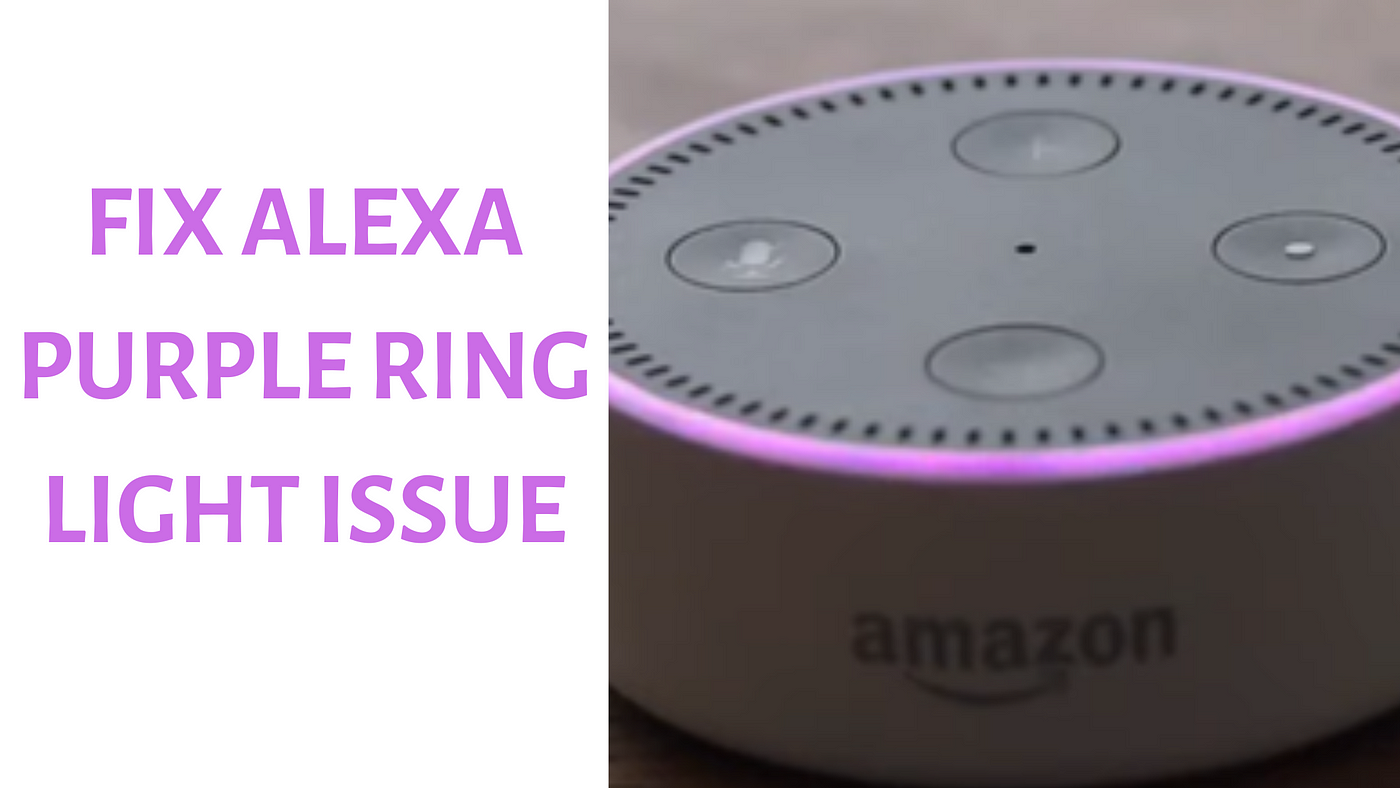
The Alexa purple light issue typically indicates a problem with your device’s Wi-Fi connection or that Do Not Disturb (DND) mode is active. Addressing this common problem can restore your smart speaker’s full functionality quickly.
This comprehensive guide will walk you through various troubleshooting steps to fix the Alexa purple light issue, ensuring your device gets back online and responds to your commands.
Understanding the Alexa Purple Light: What It Signifies
The purple light on your Amazon Alexa device is a visual indicator that can point to a couple of different operational states. Understanding these states is the first step in learning how to fix alexa purple light issue effectively.
Primarily, a purple light signifies either an active Do Not Disturb mode or an issue with your device’s Wi-Fi connectivity.
Do Not Disturb Mode Explained
When Do Not Disturb mode is enabled on your Alexa device, you might see a brief flash of purple light after interacting with it. This serves as a quick visual confirmation that your device is currently silencing notifications and calls.
In this mode, Alexa will still respond to your voice commands for music, information, or smart home control, but it won’t announce incoming messages or calls.
This feature is designed to prevent interruptions, especially during specific times like sleep or important meetings.
Wi-Fi Connectivity Problems: The Core Issue
A continuous or pulsating purple light often signals that your Alexa device is struggling to connect to your Wi-Fi network. This is a critical issue, as Alexa relies entirely on a stable internet connection to function.
Without a reliable Wi-Fi connection, Alexa cannot process commands, stream music, or communicate with other smart home devices.
This connectivity problem can arise during initial setup or appear suddenly after a period of normal operation.
Common Scenarios Leading to the Purple Light
Several factors can cause your Alexa device to display a purple light. Pinpointing the exact scenario helps in applying the most effective solution to fix the Alexa purple light issue.
These scenarios range from minor configuration errors to more significant network problems.
Initial Setup Hiccups
During the first-time setup of your Alexa device, a continuous pulsating purple light frequently indicates a problem with the Wi-Fi connection. This could be due to incorrect Wi-Fi credentials being entered into the Alexa app.
It might also signify that your device is unable to locate or establish a stable connection with your home network.
Ensuring accurate network details and a strong signal during setup is crucial.
Intermittent Connectivity Challenges
Sometimes, the purple light appears even after your Alexa device has been working fine. This often points to ongoing Wi-Fi connectivity problems, such as a weak signal strength.
Network interference from other electronic devices or an issue with your Wi-Fi router itself can also disrupt the connection.
These intermittent issues can be frustrating but are usually resolvable with some network troubleshooting.
Accidental Do Not Disturb Activation
A single flash of purple light after you speak to Alexa usually means that Do Not Disturb mode has been activated. This can happen unintentionally through a voice command or by adjusting settings in the Alexa app.
While not a malfunction, it can be confusing if you’re not aware the mode is active.
Checking and disabling this setting is a quick fix if you prefer to receive all notifications.
Step-by-Step Guide: How to Fix Alexa Purple Light Issue
Now that we understand the potential causes, let’s dive into the practical steps to troubleshoot and fix the Alexa purple light issue. These solutions range from simple restarts to more advanced network checks.
Follow these instructions systematically to get your Alexa device working properly again.
Restarting Your Alexa Device
A simple restart can often resolve many temporary glitches and software errors that might be causing the purple light. This process clears the device’s temporary memory and re-establishes its connection to the network.
It’s a quick and effective first step in troubleshooting.
- Unplug the device: Locate the power adapter for your Alexa device and unplug it from the wall outlet.
- Wait for a short period: Allow at least 30 seconds for the device to fully power down and for any residual charge to dissipate.
- Plug it back in: Reconnect the power adapter to the wall outlet. Your Alexa device will then power on and attempt to reconnect to your Wi-Fi network.
Observe the light ring; if the purple light disappears, the issue was likely a temporary software hiccup.
Verifying Your Wi-Fi Connection
Since Wi-Fi issues are a primary cause of the purple light, ensuring your internet connection is stable is crucial. Check if other devices in your home are connecting to Wi-Fi without problems.
If other devices also have connectivity issues, the problem might be with your router or internet service provider.
- Check other devices: Try browsing the internet or using streaming services on your smartphone, tablet, or computer connected to the same Wi-Fi network.
- Restart your router and modem: Unplug your Wi-Fi router and modem from their power sources. Wait for 60 seconds, then plug the modem back in first, followed by the router. Allow both devices a few minutes to fully boot up and re-establish the internet connection.
- Move your Alexa device closer to the router: If your Alexa is far from the router or in an area with many obstructions, signal strength can be weak. Moving it closer can improve connectivity.
Using the Alexa App to Check Network Status
The Alexa app provides useful tools to manage your device’s network settings and diagnose connection problems. You can use it to verify which network your device is connected to and troubleshoot further.
This is particularly helpful if your device is connected to the wrong network or has outdated credentials.
- Open the Alexa app: Launch the Amazon Alexa app on your smartphone or tablet.
- Navigate to devices: Tap the “Devices” icon at the bottom right of the screen.
- Select your Alexa device: Choose “Echo & Alexa” and then select the specific Alexa device that is showing the purple light.
- Check Wi-Fi settings: Scroll down to the “Wireless” or “Wi-Fi Network” section. If it shows “Connected,” try forgetting the network and reconnecting. If it shows “Offline,” tap “Change” next to the Wi-Fi network to re-enter your Wi-Fi password or select a different network.
Ensure you enter the correct Wi-Fi password and select the appropriate network name (SSID).
Disabling Do Not Disturb Mode
If the purple light only flashes briefly after you speak, it’s highly likely that Do Not Disturb mode is active. Disabling it is straightforward and can be done through voice commands or the Alexa app.
This will allow all notifications and calls to come through again.
- Using voice commands: Simply say, “Alexa, turn off Do Not Disturb.” Alexa will confirm that the mode has been deactivated.
- Using the Alexa app:
- Open the Alexa app and tap “Devices.”
- Select “Echo & Alexa” and then choose your specific Alexa device.
- Scroll down and tap on “Do Not Disturb.”
- Toggle the switch to the “Off” position.
After disabling, test your Alexa device by asking a question or trying to make a call to confirm the purple light no longer flashes.
Updating the Alexa App and Device Software
Outdated software, either on your Alexa app or the device itself, can sometimes lead to connectivity issues or other malfunctions. Keeping both up to date ensures you have the latest bug fixes and performance improvements.
Alexa devices typically update automatically, but you can manually check for app updates.
- Update the Alexa app: Visit your device’s app store (Google Play Store for Android, Apple App Store for iOS). Search for “Amazon Alexa” and check if an “Update” button is available. If so, tap it to install the latest version.
- Check device software: Alexa devices usually update overnight when not in use. To ensure your device has the latest firmware, simply leave it plugged in and connected to Wi-Fi. You can also ask, “Alexa, check for software updates.”
Allow any updates to complete fully before re-evaluating the purple light issue.
Resetting Your Alexa Device (Factory Reset)
A factory reset should be considered a last resort, as it erases all personal settings, registered accounts, and Wi-Fi credentials. You will need to set up your Alexa device from scratch afterward.
However, it can be very effective in resolving persistent software or connectivity issues that other troubleshooting steps couldn’t fix.
- Understand the implications: A factory reset reverts your device to its original out-of-the-box state.
- Locate the reset button/method:
- For Echo Dot (1st-3rd Gen), Echo (1st-3rd Gen), Echo Plus (1st Gen): Use a paperclip to press and hold the reset button located in a small pinhole on the bottom of the device for 5 seconds.
- For Echo Dot (4th/5th Gen), Echo (4th Gen), Echo Studio, Echo Show devices: Press and hold the “Action” button (the button with a dot icon) for about 20-25 seconds until the light ring turns orange, then blue. For Echo Show, you might need to go into settings.
- Follow on-screen/light instructions: The device will restart and enter setup mode (indicated by an orange light).
- Re-setup your device: Use the Alexa app to set up your device again as if it were new, connecting it to your Wi-Fi and Amazon account.
If the purple light persists after a factory reset and re-setup, the issue might be hardware-related.
Deregistering and Re-registering Your Alexa Device
Sometimes, the issue isn’t with the device’s software or network, but with its registration to your Amazon account. Deregistering and then re-registering can resolve account-specific glitches.
This is less drastic than a factory reset but can still be effective.
- Open the Alexa app: Go to “Devices,” then “Echo & Alexa,” and select your device.
- Deregister the device: Scroll down and tap “Deregister.” Confirm your choice.
- Re-register the device: Once deregistered, you can re-register it through the Alexa app by going to “Add Device” and following the setup prompts.
This process essentially refreshes the device’s link to your Amazon profile and its associated settings.
Advanced Network Troubleshooting for Persistent Issues
If the purple light issue continues after trying the basic troubleshooting steps, it might be time to delve deeper into your home network configuration. Advanced network problems can sometimes prevent Alexa from connecting properly.
These steps require a bit more technical understanding but can be very effective.
Checking Wi-Fi Band Compatibility (2.4 GHz vs. 5 GHz)
Most Alexa devices support both 2.4 GHz and 5 GHz Wi-Fi bands. While 5 GHz offers faster speeds, 2.4 GHz provides better range and penetration through walls.
Ensure your Alexa device is connected to the appropriate band, especially if you have a dual-band router.
- Identify your router’s bands: Check your router’s documentation or login to its administration page to see if it broadcasts separate SSIDs (network names) for 2.4 GHz and 5 GHz.
- Connect to 2.4 GHz: If your Alexa device is far from the router or experiencing connectivity issues, try connecting it to the 2.4 GHz network. This band is generally more stable for smart home devices.
- Avoid band steering issues: Some routers have “band steering” which automatically switches devices between bands. If this causes instability, consider disabling it or giving your 2.4 GHz and 5 GHz networks distinct names.
A stable 2.4 GHz connection is often more reliable for smart devices than a faster but less consistent 5 GHz connection.
Adjusting Router Settings (Firewall, MAC Filtering)
Your router’s security settings can sometimes inadvertently block Alexa’s connection. Checking and adjusting these settings might be necessary.
Be cautious when changing router settings, as incorrect configurations can affect your entire network.
- Access router administration: Open a web browser and type your router’s IP address (e.g., 192.168.1.1 or 192.168.0.1) into the address bar. Log in with your administrator credentials.
- Check firewall settings: Ensure your router’s firewall isn’t overly restrictive. Temporarily lowering the security level or adding Alexa as an allowed device might help.
- Review MAC filtering: If you use MAC address filtering, ensure your Alexa device’s MAC address is whitelisted. You can usually find Alexa’s MAC address in the Alexa app under device settings.
- Disable parental controls/access restrictions: Temporarily disable any parental control or access restriction features on your router that might be blocking Alexa’s connection.
Remember to revert any temporary changes if they don’t resolve the issue, or if you prefer to keep those security features active.
Minimizing Wireless Interference
Wireless interference can significantly degrade Wi-Fi signal quality, leading to connectivity problems and the purple light issue. Many common household devices operate on similar frequencies as Wi-Fi.
Identifying and mitigating sources of interference can greatly improve your Alexa’s connection stability.
- Identify common interference sources: Cordless phones, microwaves, Bluetooth devices, baby monitors, and even neighbors’ Wi-Fi networks can cause interference.
- Relocate devices: Move your Alexa device, router, and potential interference sources further apart from each other.
- Change Wi-Fi channel: Log into your router’s administration page and try changing your Wi-Fi channel. Use a Wi-Fi analyzer app on your phone to find the least congested channel in your area.
Optimizing your Wi-Fi environment can make a big difference in preventing connectivity issues.
When to Seek Further Help
If you’ve exhausted all the troubleshooting steps and your Alexa device still displays the purple light, it might be time to seek expert assistance. There are several resources available to help you.
Sometimes, the problem requires specialized knowledge or a replacement device.
Exploring Online Communities (Reddit, Amazon Forums)
Online communities like Reddit (r/Alexa, r/amazonecho) and Amazon’s official support forums are excellent resources. You can often find users who have experienced similar issues and shared their solutions.
Searching these forums for “how to fix alexa purple light issue” can yield unique insights or less common fixes.
Be sure to provide details about your specific Alexa model and the steps you’ve already tried when posting for help.
Contacting Amazon Customer Support
If all else fails, Amazon’s dedicated customer support team is your best resource. They can provide personalized troubleshooting, escalate the issue, or arrange for a replacement if your device is under warranty.
Have your device’s serial number ready and be prepared to describe the issue and the troubleshooting steps you’ve already attempted.
You can contact Amazon support via their website, phone, or chat features.
Frequently Asked Questions
What does a solid purple light mean on Alexa?
A solid purple light on Alexa typically indicates that the device is in Do Not Disturb mode. It briefly flashes purple after you interact with it, signaling that notifications and calls are silenced.
How do I turn off Do Not Disturb on Alexa?
You can turn off Do Not Disturb mode by saying, “Alexa, turn off Do Not Disturb,” or by opening the Alexa app, navigating to your device settings, and toggling the “Do Not Disturb” option to off.
Why is my Alexa device not connecting to Wi-Fi?
Your Alexa device might not be connecting to Wi-Fi due to incorrect password entry, a weak signal, network interference, or issues with your router. Restarting your router and ensuring correct Wi-Fi credentials are common fixes.
Will restarting my Alexa delete my settings?
No, a simple restart (unplugging and plugging back in) will not delete your Alexa’s settings or saved information. It only clears temporary glitches and re-establishes connections.
When should I factory reset my Alexa?
You should factory reset your Alexa device as a last resort if all other troubleshooting steps fail to resolve persistent issues like the purple light. Remember, this will erase all personal data and require a full re-setup.
Are there other Alexa light colors I should know about?
Yes, Alexa uses various light colors to indicate status: blue for listening, green for calls/drops in, yellow for messages, red for muted microphone, and orange for setup mode or connectivity issues.
Conclusion
Encountering the Alexa purple light issue can be perplexing, but with the right troubleshooting steps, it’s often a solvable problem. By understanding what the purple light signifies—either Do Not Disturb mode or Wi-Fi connectivity issues—you can approach the solution systematically.
From simple restarts and checking your Wi-Fi connection to more advanced network adjustments and factory resets, this guide provides a comprehensive pathway to fix the Alexa purple light issue.
Don’t let a purple light disrupt your smart home experience. Follow these detailed instructions to restore your Alexa device to full functionality and enjoy seamless interaction with your digital assistant once again.