
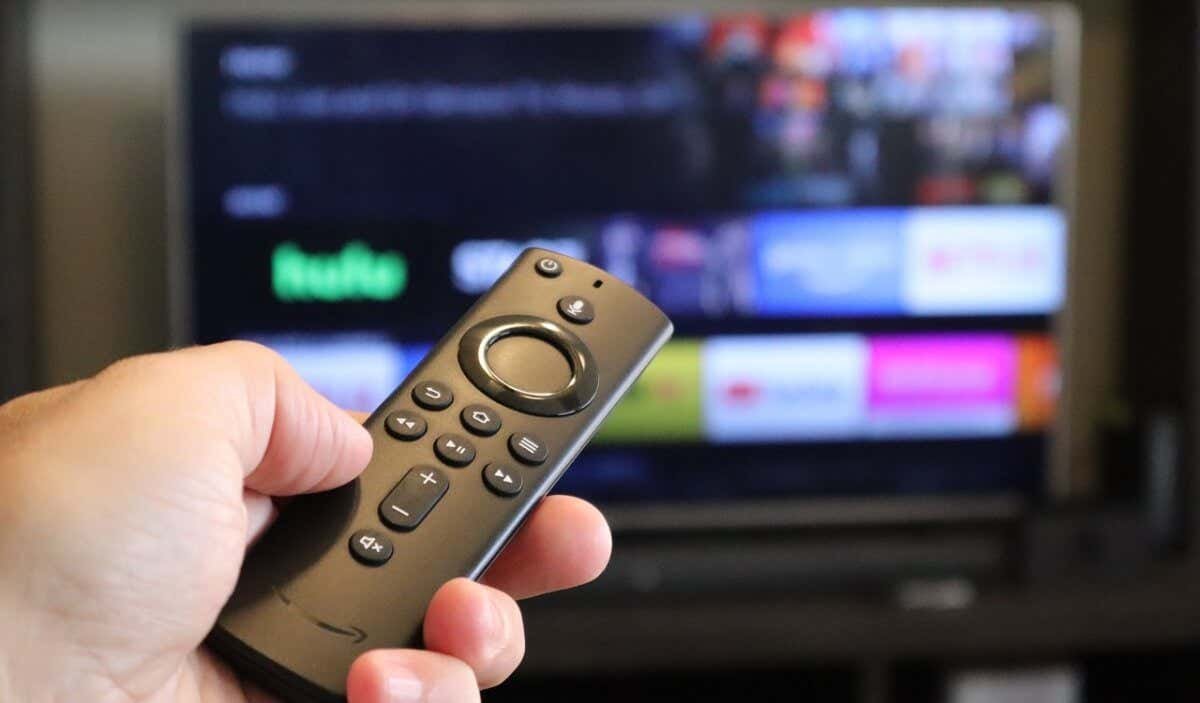
If your Firestick won’t turn on, it can quickly disrupt your entertainment. This common problem often stems from simple issues like power supply, HDMI connections, or remote control malfunctions.
Understanding
how to resolve the issue of Firestick won’t turn on
is crucial for any user. This comprehensive guide will walk you through systematic troubleshooting steps. You’ll soon have your Amazon Firestick back up and running, ensuring uninterrupted access to your favorite content.
Understanding Why Your Firestick Might Not Turn On
The Amazon Firestick is a convenient streaming device. However, like any electronic gadget, it can encounter issues. When your Firestick refuses to power on, it can be frustrating.
Several common culprits are usually behind this problem. Identifying the root cause is the first step toward finding a solution. We will explore the most frequent reasons your Firestick might seem unresponsive.
Common Reasons for a Firestick Power Failure
A Firestick that won’t turn on often points to a power-related problem. The device needs a consistent and sufficient power supply to function correctly.
Issues with the power adapter, cable, or even the electrical outlet can prevent startup. It’s important to rule out these basic power supply problems first.
- Inadequate Power Supply: The most frequent cause is insufficient or inconsistent power.
- Faulty Power Adapter or Cable: A damaged adapter or USB cable can prevent power delivery.
- Problematic HDMI Connection: A loose or faulty HDMI port on your TV or the Firestick itself.
- Remote Control Issues: Dead batteries or a desynced remote can make the Firestick seem unresponsive.
- Software Glitches: Rarely, a software bug can prevent the device from booting up properly.
- Overheating: An overheated device might refuse to turn on until it cools down.
Step-by-Step Guide to Resolve the Issue of Firestick Won’t Turn On
Troubleshooting a Firestick that won’t turn on requires a methodical approach. Start with the simplest checks and gradually move to more complex solutions.
Each step is designed to help you pinpoint and fix the underlying problem. Follow these instructions carefully to bring your Firestick back to life.
1. Verify Basic Connections and Power Source
Before diving into complex fixes, ensure the fundamental connections are secure. A loose cable is a surprisingly common cause of issues.
These initial checks are quick and often resolve the problem immediately.
Ensure Your TV is On and on the Correct Input
It sounds obvious, but sometimes the simplest oversight is the culprit. Make sure your television is powered on.
Also, confirm that your TV is set to the correct HDMI input channel. Your Firestick will only display if the TV input matches the port it’s plugged into.
Check the Firestick’s Power Adapter and Cable
The Firestick requires a stable power source. Always use the original Amazon power adapter and USB cable that came with your device.
Inspect the power adapter and cable for any visible damage, such as frayed wires or bent pins. A damaged power component can’t deliver proper electricity.
Use a Direct Wall Outlet for Power
Avoid powering your Firestick using your TV’s USB port. While convenient, TV USB ports often do not provide enough power.
Plug the Firestick’s power adapter directly into a wall outlet. This ensures it receives the necessary consistent power supply for proper operation.
2. Troubleshoot HDMI Connection Problems
The HDMI connection transmits both video and audio from your Firestick to your TV. Issues with this connection can prevent any display from appearing.
A faulty HDMI port or cable can make it seem like the Firestick isn’t turning on. These steps help diagnose HDMI-related issues.
Try a Different HDMI Port on Your TV
Your TV might have multiple HDMI ports. One of them could be malfunctioning.
Unplug your Firestick from its current HDMI port and try plugging it into a different one. Remember to switch your TV’s input source accordingly.
Inspect the HDMI Cable and Extender
The Firestick often comes with a short HDMI extender. This helps improve Wi-Fi signal and fit into tight spaces.
Ensure the extender is securely connected to both the Firestick and the TV’s HDMI port. Try removing the extender and plugging the Firestick directly into the TV’s HDMI port if possible. Also, check the Firestick itself for any damage to its HDMI connector.
Test with a Different HDMI Cable (if applicable)
If you’re using a separate HDMI cable (e.g., with older Fire TV models or adapters), test it. Try a different, known-good HDMI cable.
This helps rule out a faulty cable as the cause of the problem.
3. Address Remote Control Issues
Sometimes, the Firestick is actually on, but the remote isn’t working. This makes it appear as though the device itself is unresponsive.
Troubleshooting the remote can quickly reveal if it’s the source of the problem.
Replace Remote Batteries
This is a fundamental step. Old or depleted batteries are a common reason for a remote not working.
Open the battery compartment and replace the old batteries with fresh AAA batteries. Ensure they are inserted with the correct polarity.
Re-pair Your Firestick Remote
If new batteries don’t help, your remote might have become unpaired from the Firestick. This can happen after power outages or updates.
To re-pair, hold the Home button on your remote for about 10-20 seconds. Point it directly at your Firestick. A successful pairing should show a message on your screen if the Firestick is indeed powered on.
Use the Fire TV App as an Alternative
If your physical remote still isn’t working, use the Amazon Fire TV app. Download it on your smartphone or tablet.
Connect your phone to the same Wi-Fi network as your Firestick. The app can serve as a virtual remote, allowing you to navigate and test if the Firestick is on. If the app works, it confirms the Firestick is powered on, and the issue is with your physical remote.
4. Perform a Soft Reset or Restart
A soft reset can clear temporary glitches that might prevent your Firestick from starting up properly. This is a safe and often effective troubleshooting step.
There are a couple of ways to perform a soft reset, depending on whether you can get any response from the device.
Unplug and Replug the Firestick
This is the simplest form of a soft reset. Disconnect the Firestick’s power adapter from the wall outlet.
Wait for at least 30-60 seconds. Then, plug the power adapter back into the wall outlet. This allows the device to fully power cycle and clear any minor errors.
Restart Firestick Using the Remote (If Partially Responsive)
If your Firestick shows a logo or partially boots but doesn’t fully load, you might be able to restart it via the remote. This assumes the remote is working.
Press and hold the Select button (the center of the navigation ring) and the Play/Pause button simultaneously for about five seconds. The Firestick should then restart.
5. Address Software and Firmware Issues
While less common for a complete “won’t turn on” scenario, software glitches can sometimes prevent proper booting. If your Firestick shows signs of life (e.g., a logo appears), these steps are relevant.
Keeping your device updated and managing its data can prevent many software-related problems.
Clear Cache and Data (If Firestick Boots Partially)
If your Firestick turns on but gets stuck on a loading screen or behaves erratically, clearing the cache can help. Cache files can become corrupted and cause issues.
Navigate to Settings > Applications > Manage Installed Applications. Select an app, then choose Clear Cache. Repeat for problematic apps. You can also try Clear Data, but be aware this will delete app-specific settings and logins.
Check for Software Updates
Amazon regularly releases software updates for Firestick devices. These updates often include bug fixes and performance improvements.
If your device eventually turns on, go to Settings > My Fire TV > About > Check for Updates. Keeping your Firestick updated can prevent future startup issues.
6. Consider Environmental Factors
The environment in which your Firestick operates can also impact its performance and ability to turn on. Overheating is a common issue for small streaming devices.
Ensuring proper ventilation and a clean operating space is crucial for device longevity.
Allow the Firestick to Cool Down
If your Firestick has been running for a long time or is in an enclosed space, it might overheat. An overheated device can shut down or refuse to turn on as a protective measure.
Unplug the Firestick and let it rest for at least 30 minutes in a cool, well-ventilated area. After it has cooled, try plugging it back in.
Ensure Adequate Ventilation
Do not place your Firestick in enclosed cabinets or behind your TV in a way that blocks airflow. Proper ventilation helps dissipate heat.
Consider using the HDMI extender to position the Firestick away from the TV’s hot exhaust vents. This can help prevent future overheating issues.
Advanced Troubleshooting and Last Resorts
If you’ve tried all the basic and intermediate steps and your Firestick still won’t turn on, it might be time for more drastic measures or professional help.
These options are typically reserved for persistent problems that don’t respond to standard troubleshooting.
Perform a Factory Reset (As a Last Resort)
A factory reset will erase all your personal data, settings, and installed applications. It returns your Firestick to its original factory state.
This is a drastic step, but it can resolve deep-seated software issues that prevent the device from booting. Only perform this if you’ve exhausted all other options.
How to Factory Reset a Firestick (If You Can Access Settings)
If your Firestick can boot up enough to access the settings menu, follow these steps:
- Go to Settings on your Firestick.
- Select My Fire TV.
- Scroll down and choose Reset to Factory Defaults.
- Confirm your choice when prompted.
How to Factory Reset Without Accessing Settings (Using Remote)
If your Firestick won’t boot past the logo or you can’t access settings, you might be able to perform a hard reset using the remote:
- Plug in your Firestick and ensure it’s connected to your TV.
- On your Firestick remote, press and hold the Back button and the Right side of the navigation circle simultaneously.
- Hold these buttons for approximately 10-15 seconds.
- You should see a message on your screen asking if you want to factory reset. Confirm your choice.
When to Seek Professional Help
If none of the above steps succeed, your Firestick may have a hardware malfunction. At this point, professional assistance is the best course of action.
Do not attempt to open or repair the device yourself, as this can void warranties and cause further damage.
Contact Amazon Customer Support
Amazon provides excellent customer support for their devices. If your Firestick is still under warranty, they may offer a replacement.
Be prepared to describe the troubleshooting steps you’ve already taken. Provide your device’s serial number if requested.
Visit a Local Electronics Repair Shop
If your Firestick is out of warranty or Amazon support cannot resolve the issue, a local electronics repair shop might be able to help.
They can diagnose hardware failures that are beyond typical user troubleshooting. However, weigh the cost of repair against the cost of a new Firestick.
Preventive Measures for Firestick Longevity
Preventing the issue of Firestick not turning on is better than constantly troubleshooting it. Adopting good habits can significantly extend your device’s lifespan and reliability.
These simple measures can help ensure your Firestick continues to provide seamless entertainment for years to come.
Regularly Update the Firestick Software
Keeping your Firestick’s software up to date is crucial. Updates often include critical bug fixes, security patches, and performance enhancements.
Outdated software can lead to instability, compatibility issues, and even prevent the device from booting correctly. Periodically check for updates via Settings > My Fire TV > About > Check for Updates.
Keep Remote Control Batteries Fresh
The remote control is your primary interface with the Firestick. Ensure its batteries are always fresh and functional.
Consider replacing batteries every 6-12 months, even if they seem to be working. Keep spare batteries on hand to avoid interruptions.
Use the Original Power Adapter and Cable
Always use the power adapter and USB cable that came with your Firestick. These are specifically designed to provide the correct voltage and current.
Third-party chargers or cables might not deliver sufficient power, leading to performance issues or even preventing the device from turning on.
Ensure Proper Ventilation
Overheating is a common enemy of electronics. Make sure your Firestick has adequate airflow around it.
Avoid placing it in enclosed spaces, under other devices, or behind your TV where heat can build up. Use the HDMI extender to position it away from the TV if needed.
Safely Disconnect When Not in Use (Optional)
If you’re going away for an extended period or experience frequent power surges, consider unplugging your Firestick.
This protects the device from electrical fluctuations and can prolong its life. However, for daily use, leaving it plugged in is generally fine as it enters a low-power standby mode.
Frequently Asked Questions
Why is my Firestick not showing anything on the TV screen?
This often points to an HDMI issue. Ensure your TV is on the correct HDMI input, try a different HDMI port, and check the Firestick’s power supply. A loose connection or faulty cable can also prevent a display.
How do I know if my Firestick is receiving power?
Most Firestick models do not have a visible power indicator light. The best way to check is to ensure the power adapter is securely plugged into a working wall outlet and the Firestick. If the TV shows any sign of input (even a black screen with the correct HDMI selected), it’s likely getting power.
Can a faulty HDMI port on my TV prevent my Firestick from turning on?
Yes, absolutely. If the HDMI port on your TV is damaged or malfunctioning, it won’t receive a signal from the Firestick, making it appear as though the Firestick isn’t turning on. Trying a different HDMI port on your TV is a key troubleshooting step.
What if my Firestick remote isn’t working at all?
First, replace the batteries with fresh ones. If that doesn’t work, try to re-pair the remote by holding the Home button for 10-20 seconds. As a temporary solution, you can download the Amazon Fire TV app on your smartphone to control the Firestick.
Is it safe to leave my Firestick plugged in all the time?
Yes, it is generally safe. Firesticks are designed to enter a low-power standby mode when not in use. This allows for quick startup and background updates. However, for long periods of inactivity or during electrical storms, unplugging it can offer extra protection.
How can I prevent my Firestick from overheating?
Ensure your Firestick has good airflow around it and isn’t placed in an enclosed space. Use the included HDMI extender to position it away from the back of your TV where heat can accumulate. Avoid placing it under other hot electronics.
Conclusion
When your Firestick won’t turn on, it can be a minor inconvenience with a simple fix. Most issues stem from power supply problems, HDMI connection errors, or remote control glitches.
By systematically following the troubleshooting steps outlined in this guide, you can effectively
resolve the issue of Firestick won’t turn on
and restore your streaming capabilities. Remember to start with the basics: check power, HDMI, and remote batteries.
If simple fixes don’t work, consider advanced options like a factory reset or contacting Amazon support. With a bit of patience, you’ll be back to enjoying your favorite shows and movies in no time.
[END_ARTICLE]